
Table of Contents
- Why Digital Organization Tips for Busy Parents Matter in 2026
- Start With a Shared Calendar Everyone Actually Checks
- Best Apps for Family Time Management (and How to Choose)
- Managing School Emails for Parents Without Losing Your Mind
- Digital Decluttering for Families: A 30-Minute Reset
- Protect Family Documents, Photos, and Privacy
- Set Screen Time Boundaries That Stick
- Frequently Asked Questions
Last Updated: September 28, 2026
Why Digital Organization Tips for Busy Parents Matter in 2026
Digital organization is the practice of structuring schedules, documents, messages, and screen habits into a few reliable systems so household logistics stop living in your head. It matters more than ever: according to the Pinterest Parenting Trend Report 2026, 54% of parents who use Pinterest monthly say they would support a screen time cap for their children, and searches for "screen free activities" jumped 200% in the same period.
Start With a Shared Calendar Everyone Actually Checks
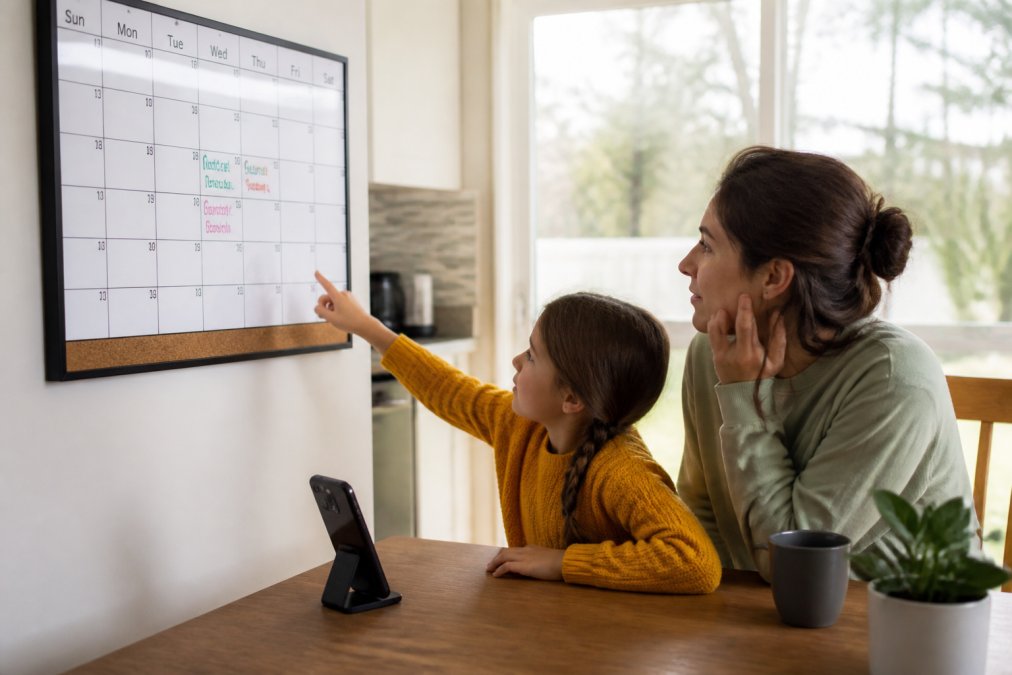
A shared calendar only works when it is the single source of truth for every family member. One calendar, shared with every adult and every child old enough for a device, beats five personal calendars that never sync.
Set Up Recurring Commitments Once
Enter recurring commitments as repeating events, not one-off entries. Soccer on Tuesdays, piano on Thursdays, and trash pickup take two minutes to set up and save you from re-entering them 40 times a year. Color-code by person so a glance tells you who needs to be where.
Run a 15-Minute Weekly Planning Meeting
Sunday evening, 15 minutes, every device open. Walk through the week ahead, flag conflicts, and assign who drives what. Research from the Pew Research Center on working parents found that work and family boundaries blur constantly for most households, and a fixed weekly review is the cheapest fix available.
Best Apps for Family Time Management (and How to Choose)
The best apps for family time management are the ones your whole household will actually open. The most capable tool loses to the simplest one nobody abandons, and in a mixed-device household, clean iOS-Android sync beats the longest feature list.

| Need | What to Look For | Where It Fits |
|---|---|---|
| Shared scheduling | Multi-user sync, color coding, CalDAV or Google/Outlook support | Every family |
| Task lists | Assignable items, due dates, recurring chores | Families with teens |
| Document storage | Cloud backup, shared folders, offline access | School paperwork |
| Screen time controls | Per-device limits, schedules, cross-platform support | Younger children |
Match the Tool to the Job
Don't force one app to do everything. A shared calendar handles scheduling, a task manager handles chores, and cloud storage handles documents. Pick two tools, not six, every tool you keep has a maintenance cost.
The Cross-Platform Sync Problem Nobody Warns You About
This is the gap most guides skip: households rarely run on one operating system. One parent is on an iPhone, the other on Android, the school sends PDFs through a portal, and the kids' tablets are a third ecosystem. Default iOS and Android calendar apps don't talk to each other without a bridge.
- Calendar: Use a Google or Outlook account as the shared calendar, then subscribe to it from Apple Calendar, Samsung Calendar, and any third-party app via CalDAV or an ICS link, so every device sees the same events.
- Tasks: Choose a task manager with native iOS and Android apps plus a web version, web access lets a Chromebook, work laptop, or school computer reach the list.
- Files: Store documents in a cloud folder that mounts as a drive on desktop and appears in the Files or Drive app on mobile. Avoid saving school forms to local storage, that file is invisible to every other device.
- Photos: Turn on automatic backup from every phone to one shared library. Mixed-ecosystem families often split photos across iCloud and Google Photos; pick one as the master archive and let the other act as secondary.
A 20-Minute Setup Sequence
- Create one shared calendar account and invite every adult and every child with a device.
- On each device, add that calendar as a subscribed or linked calendar, not a separate local one.
- Turn on notifications for the shared calendar only, and mute personal ones during family hours.
- Create three shared folders: School, Medical, and Household. Move existing documents into them.
- Install the task app on every device and add one recurring chore per person as a test.
Free vs. Paid: What You Actually Need to Pay For
Most families can run the entire system on free tiers: free calendar sharing, free cloud storage up to the provider's limit, and free task apps cover the core. Paid upgrades are worth it only when they remove a specific friction, more storage when the photo library outgrows the free tier, or a family plan when screen time controls must apply across multiple children's devices.
When to Add Automation
Once the calendar and task list are stable, automation earns its place. Recurring events handle the predictable parts of the week. For the unpredictable parts, a form due Friday, a permission slip, a teacher email, set a rule that routes anything from a school domain into a labeled folder and flags it for the weekly planning meeting.
A Note on Data Portability
Before committing to any tool, check whether you can export your data. A calendar that exports to ICS, a task app that exports to CSV, and a cloud folder that syncs to your desktop protect you from lock-in. Families change devices and schools change platforms; the system should survive both.
Managing School Emails for Parents Without Losing Your Mind
Managing school emails for parents comes down to one rule: get information out of your inbox and into the system that owns it. The inbox is a delivery channel, not a storage space.
Digital Decluttering for Families: A 30-Minute Reset
Digital decluttering for families is a recurring 30-minute cleanup, not a one-time purge. Put it on the calendar monthly and treat it like any other commitment.
Cut the Subscriptions You Forgot About
Open your app store subscription list and your bank statement side by side. Cancel anything you haven't opened in 60 days, most families find two or three subscriptions they pay for out of habit. Then delete duplicate photos, empty the downloads folder, and unsubscribe from retail email lists.
Protect Family Documents, Photos, and Privacy
Family documents and photos need three things: a backup, a shared location, and a privacy check. The gap most guides miss is that a family's digital footprint is not one account, it is a dozen, spread across school portals, medical systems, photo apps, and the devices your children carry.
Busy Woman's 4-Week Meal Prep Guide and →
Start With a Threat Model, Not a Checklist
Ask three questions before you touch a setting:
- What would be worst if it leaked? Social Security numbers, medical records, and school enrollment forms top the list. Photos of children and location data come next.
- Who already has access? Every app on every family device, every school portal, every shared login.
- What happens if a device is lost? A phone without a passcode or remote wipe is a portable copy of your family's life.
The Three-Location Backup Rule
A single cloud backup is not a backup, it is a single point of failure. Use the 3-2-1 pattern adapted for families:
- Three copies of anything irreplaceable: the original, a cloud copy, and a local copy.
- Two formats: a synced cloud folder plus an external drive that lives in the house.
- One offsite: a second cloud provider or a drive kept somewhere else.
Lock Down the Accounts That Matter Most
Two-factor authentication is the single highest-value change, and it should go on in this order:
- The email account that resets everything else.
- The cloud storage account holding family documents.
- The bank and payment apps.
- The school portal and any medical portal.
- The shared calendar account.
Password Hygiene Without the Overwhelm
A family password manager solves two problems at once: it generates unique passwords so one breach doesn't cascade, and it gives you a shared vault for the logins both parents need. Set up three vaults: one for each adult (private) and one shared (school portals, streaming, utilities).
Review App Permissions Quarterly
Put this on the same monthly reset as your digital decluttering. On each device, open privacy settings and revoke access to location, contacts, microphone, and camera for any app that doesn't need it. Common offenders are photo editors, games, and free utility apps. On children's devices, disable in-app purchases and require approval for new installs.
The School Portal Problem
School portals are a quiet privacy risk because they accumulate years of records, grades, health notes, emergency contacts, sometimes scanned IDs, behind a login many parents reuse across sites. Treat the portal like a bank account: unique password, two-factor on, and a calendar reminder to download and archive records at the end of each school year so you are not dependent on the portal staying online.
Photos: The Most Overlooked Privacy Surface
Photos carry metadata, timestamps, and often GPS coordinates, that reveals where your family lives, where children go to school, and your daily routine. Two practical steps:
- Strip location data before sharing publicly. Most phone photo apps have a "remove location" option in the share sheet, or you can screenshot the image, which drops the metadata.
- Turn off automatic public sharing. Check that any shared album is set to invited-only, not public link.
What to Do If Something Goes Wrong
If an account is compromised: change the password, revoke active sessions, turn on two-factor if it wasn't already, and check the recent activity log for unfamiliar logins. If a device is lost: use the platform's find-my-device tool to lock and wipe it remotely, then change the passwords to any account signed in on it.
Set Screen Time Boundaries That Stick
Screen time boundaries stick when they're built into the environment, not enforced by willpower. Children and Screens recommends structured digital environments and consistent modeling for children ages 0-5 (Children and Screens guidance), and the same principle works at every age.
Frequently Asked Questions
What are the best digital tools for managing family schedules?
A shared calendar is the anchor, and Google Calendar or Apple Calendar both handle color-coded entries for each family member. Add a task app like Google Keep for to-dos and a cloud folder for school documents. The tool matters less than the habit: every appointment gets added the moment it's confirmed, and one 15-minute weekly planning meeting keeps the week aligned. Research from Children and Screens (2024) found that consistency and open communication drive effective digital parenting more than any single app.
How do I manage school emails and digital notifications efficiently?
Create a dedicated folder or label for school messages and set a filter so newsletters skip your main inbox. Check it once in the morning and once after school pickup, not every time a notification pings. Turn off push alerts for everything except time-sensitive contacts. The National Institutes of Health (2024) documented that parents use specific information-seeking strategies to manage household and child-rearing tasks, and batching school email into two daily windows is one of the simplest to adopt.
How can parents reduce digital clutter in the home?
Run a 30-minute reset once a month: delete duplicate photos, unsubscribe from store emails, cancel unused subscriptions, and clear old files off phones. A 2026 Pinterest Parenting Trend Report found searches for screen free activities rose 200%, which signals families are already rethinking how much digital noise they tolerate. The same principle applies to your devices: fewer apps, fewer notifications, and one clear home for documents beats a dozen half-used tools.
How do we set screen time boundaries without fighting every night?
Change the environment instead of relying on willpower. A charging station by the door, phone-free dinners, and router schedules that pause Wi-Fi during homework hours remove the daily negotiation. The 2026 Pinterest Parenting Trend Report found 54% of parents who use Pinterest monthly would support a cap on screen time for their children. A structured plan, like the 14-Day Reset in RAK GROUP's Reclaiming Family Time guide ($29.99), walks through notification settings, smart plugs, and family rituals step by step.